What you get
After the plugin template is generated, here is what you get in the new directory:
-
a QField plugin made of QML code. It contains a bit of logic and some UI components for your plugin. See more in the
QField pluginsection. -
a test framework setup allowing to test the plugin, using
pytest-qfield. -
CICD jobs configured to run different elements around the new plugin in a CI: linting, tests, releases, etc. GitHub Actions and GitLab CI are currently supported.
-
a translation framework allowing you to translate the plugin to several languages, using the Qt tools e.g.
Qt Linguist. -
a
pre-commitconfiguration, that guarantees homogeneous formatting and linting across contributions.
Template structure
Here is the structure of the generated plugin template directory:
├── my-new-qfield-plugin/                   # the main plugin directory
│   ├── resources/                          # the plugin's resources directory
│   │   ├── images/                         # the images resources
│   │   │   └── icon.png
│   │   └── sounds/                         # the sounds resources
│   ├── FamousPlacesDialog.qml              # a QML component for a sample dialog
│   ├── main_de.ts                          # the German translation file
│   ├── main_en.ts                          # the English translation file
│   ├── main_fr.ts                          # the French translation file... and so on for the other languages
│   ├── main.qml                            # the main entry point of the plugin
│   ├── metadata.txt                        # the plugin's metadata file
│   ├── MultimediaDialog.qml                # another QML component for a sample dialog
│   └── translations.pro                    # the Qt translation project file
├── .github/                                # GitHub Actions configuration directory - only if GitHub was the selected CI platform
│   ├── workflows/                          # workflows directory
│   │   ├── autolabeler.yml
│   │   ├── lint.yml
│   │   ├── pr_qrcode.yml
│   │   ├── release.yml
│   │   └── tests.yml
│   ├── dependabot.yml                      # dependabot configuration file
│   └── labeler.yml                         # labeler configuration file
├── scripts/                                # utils scripts for the CICD jobs
│   ├── github/                             # if GitHub was the selected CI platform
│   │   ├── delete-bot-comment.js
│   │   └── delete-pr-prereleases.js
│   ├── gitlab/                             # if GitLab was the selected CI platform
│   │   └── post_mr_comment.sh
│   └── generate_qr_code.py
├── tests/                                  # test directory for the plugin
│   ├── conftest.py
│   ├── __init__.py
│   └── test_plugin.py                      # test cases file, using pytest-qfield
├── .gitignore
├── .gitlab-ci.yml                          # GitLab CI configuration file - only if GitLab was the selected CI platform
├── .pre-commit-config.yaml                 # pre-commit hooks configuration file
├── LICENSE
├── pyproject.toml                          # the Python project configuration file
└── README.md
QField plugin
You get a generated QField plugin made of QML code, which contains a bit of logic and some UI components for your plugin. It is located in the main generated directory.
-
The
metadata.txtfile contains the plugin's metadata, and is used by QField to display the plugin in the list of the available ones. This file is mainly filled with the given template parameters. -
The
main.qmlfile is the main entry point of the plugin, and contains the main logic and UI components. It basically adds buttons to the QField interface:
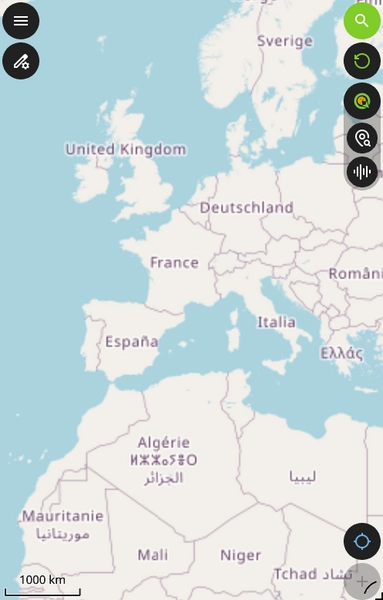
- The first button opens a dialog, which is a QML component defined in the
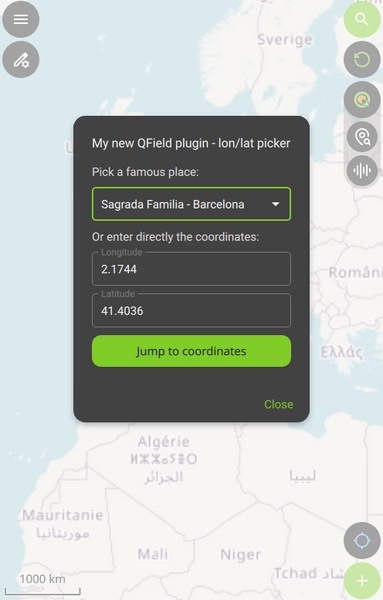
FamousPlacesDialog.qmlfile. This dialog allows to make the QField map canvas jump to a place, which can be selected from a list:
- The second button opens a dialog, which is a QML component defined in the
MultimediaDialog.qmlfile. This dialog allows to interact with the QField "multimedia" capabilities, e.g. play sounds, vibrate, etc.
Tip
Browse the QField API docs to enhance it.
Tests
You get a generated template directory contains a test framework setup allowing to test the plugin, using pytest-qfield. The tests are located in the tests directory, and are written in Python. Those tests require to clone the QField repository, and will test the plugin via Qt6.
See the test dev workflow for more information on how to run the tests.
CICD setup
Depending on which CI platform you chose during the template generation, you get a CICD configuration for either GitHub Actions or GitLab CI.
Here are the CICD jobs that are configured to run different elements around the new plugin in a CI:
- linting: this job will ensure that the code is respecting the setup
pre-commithooks. - tests: this job will run the tests for the plugin.
- qr codes: this job will generate temporary QR codes for the plugin, which can be used to install a specific version of the plugin in the QField plugin manager, to test this version on a mobile device.
- release: this job will handle the release process for the plugin - currently only available for GitHub Actions.
GitHub Actions
The configuration is located in the .github directory, and is also making use of the scripts/github JS scripts designed to interact with GitHub APIs.
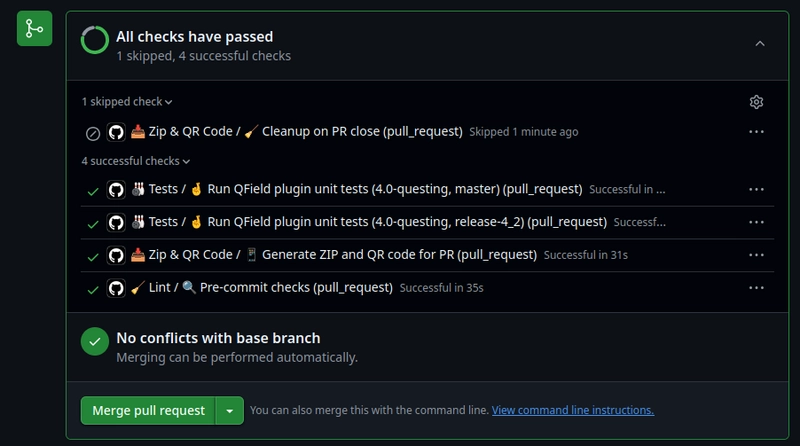
Here is an overview of the setup workflows on a Pull Request, showing the different jobs and their status:
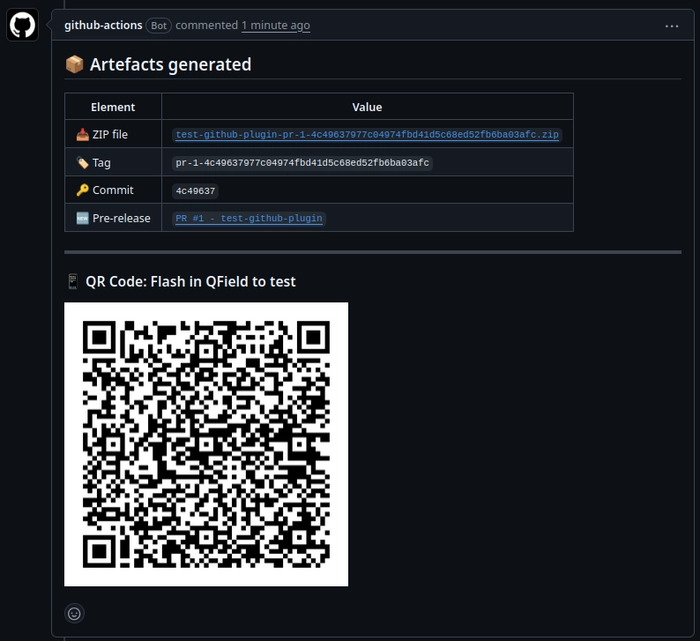
On a Pull Request, there is also a QR code generation job, which will generate a temporary QR code for the plugin and comment on the PR:
Note
Due to GitHub artifacts and API design, this QR code step is generating GitHub pre-releases in order to have a public URL for the QR code. The pre-release is automatically deleted when the Pull Request is closed or merged, and the QR code will no longer be available.
Regularly run git fetch --prune --prune-tags to clean up the local repository from the tags of such generated pre-releases.
GitLab CI
The configuration is located in the .gitlab-ci.yml file, and is also making use of a bash script located in the scripts/gitlab directory, designed to interact with GitLab APIs.
Important
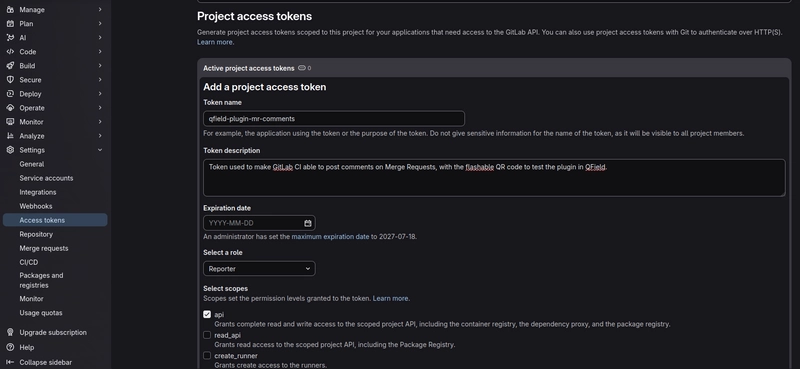
You need to create a GitLab access token in the project settings, in order to allow the QR code generation job to work on Merge Requests.
First, create a GitLab access token with the api scope in the GitLab project settings:
Tip
Regarding the token's role, select at least Reporter.
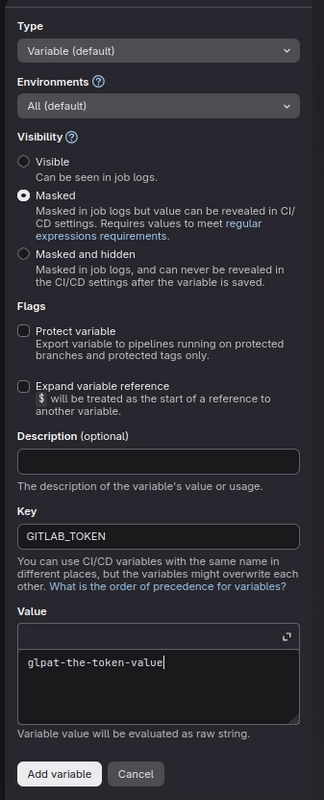
Then, add this token as a CI/CD variable named GITLAB_TOKEN, in the GitLab project settings under CI/CD > Variables > CI/CD variables > Add variable:
Warning
Don't check the Protect variable flag, otherwise the QR code generation job may not be able to comment on Merge Requests.
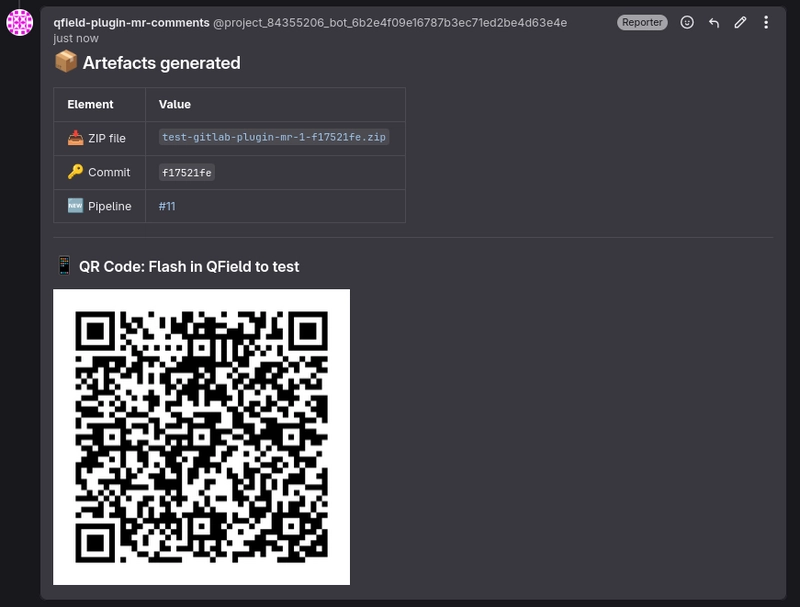
Once the CI/CD variable is created, the QR code generation job will be able to generate a temporary QR code for the plugin and comment on the Merge Request:
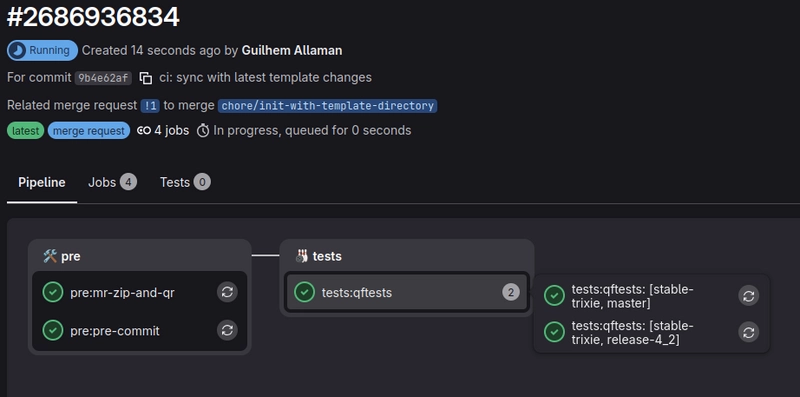
Here is an overview of the setup pipelines on a Merge Request, showing the different jobs and their status on a Merge Request:
Translations
You get a generated template directory which contains a translation framework, allowing you to translate the plugin to several languages, using the Qt tools e.g. Qt Linguist.
Available languages can be configured during the template generation or later. The translation files are in the .ts format, which is a XML-based format used by Qt.
See the translation dev workflow for more information on how to manage translations.
See the QField plugins API docs for more information on how to translate the plugin.